Interface Tour
A guided tour of the CueForge Edit Mode window — cue list, Add menu, inspector, transport, and tool windows.
This tour walks through the CueForge main window as you see it in Edit Mode — the mode you use to build and rehearse a show. Nothing in this window can fire live output; the live operator surface is Show Mode.
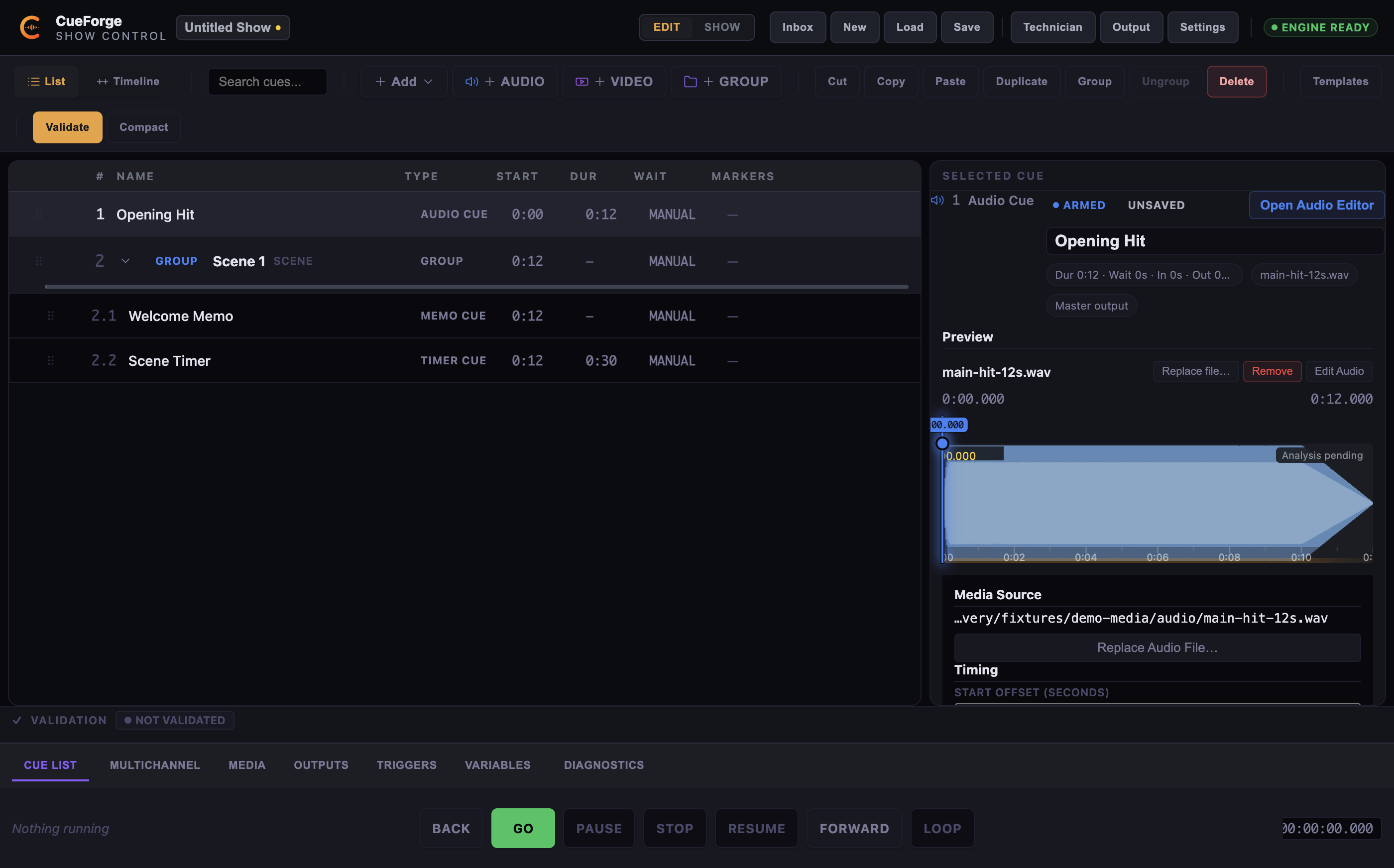
The main Edit Mode window: cue list with grouped cues, the Add menu and toolbar, the inspector, and the audition transport along the bottom.
The cue list
The cue list is the tall panel on the left, showing every cue in running order.
- Rows — each row shows the computed cue number, a type icon, the cue name, and status badges (for example Missing on a media cue whose file cannot be found).
- Selection — click to select one cue;
Cmd/Ctrl+Aselects all. The inspector always reflects the selection. - Collapse — groups can be collapsed to a single row with
←and expanded with→. - Search / filter — filter the list by text. While filtered, copy, duplicate, and delete still work, but drag-reorder is disabled and the
Delete/Backspacekeys do not delete — use the toolbar or context-menu Delete while filtered. - Reorder — drag cues, or indent into a group with
Taband outdent withShift+Tab.
The Add cue menu
The Add button at the head of the cue list opens the cue menu, organised in four groups:
- Media — Audio, Video, Image
- Timing — Wait, Timer
- Structure / Control — Group, Stop, Call, Memo
- External — OSC, MIDI, HTTP
New cues are named New <Type> Cue and numbered automatically. When a Group Cue is selected, the menu offers Add inside Group. The same types are available as Alt+letter shortcuts — see Keyboard Shortcuts.
The inspector
The inspector is the properties panel for the selected cue. It always shows:
- Identity — name, cue type, and the computed cue number.
- Timing and continuation — a summary of how the cue starts and what it does on completion.
- Routing summary — where audio or video is routed.
- Operator notes — free text shown to the operator.
- Warnings — anything preflight will flag for this cue.
- Open Deep Editor — for Audio cues, opens the Audio Deep Editor.
Below these, the editor shows the settings specific to the cue type — media source, fades, loop, layer, targets, and so on.
Transport and audition
The transport bar in Edit Mode is for rehearsal: Space auditions the selected cue (play/pause), S stops, P and R pause and resume the global transport. It never contains GO or PANIC — those exist only in Show Mode.
Status indicators
The window surfaces project health continuously: the dirty indicator (unsaved changes), missing-media badges on cue rows, and preflight-relevant warnings in the inspector. You should never be surprised by preflight, because the same information is visible while you edit.
Tool windows from the Window menu
Each tool window opens as a separate desktop window; choosing the menu item again focuses the existing window instead of opening a duplicate.
Window → Outputs — the projection-mapping editor for a selected logical output: mapping surfaces list (+ Add Surface), a preview whose Preview Source can show the live Program composition or a generated commissioning pattern, View: Source / Mapped, zoom, and Show on Output to check a pattern on the real surface. Display binding lives in Settings → Outputs & Displays. See Outputs.
Window → Show Graph — a read-only view of the show: the Design structure view, the Live Trace of what the engine actually ran, and Follow Live. It observes the show; it never controls it. See Show Graph and Timeline.
Window → Timeline — a timecode ruler that follows engine show time, with zoom, snap, and time-display options. See Show Graph and Timeline.
Window → Control Mapping — where incoming OSC, MIDI, and HTTP signals are mapped to show actions, cue actions, and continuous parameters, and where unassigned input lands in the Trigger Inbox. See Control Mapping.
Window → Open Prep Authoring Window — the detached Audio Deep Editor, for detailed audio work in its own window during rehearsal. See The Audio Deep Editor.
Start Workspace
File → Start Workspace (Cmd+Shift+N) replaces the window content with the launcher: New Empty Project, Open Existing Project…, Recent Projects (with (missing) markers), Project Templates, and Demo Projects. See Installation.
Settings
CueForge → Settings… (Cmd+,) opens the settings modal, organised in sections:
General · Project · Playback · Audio · Outputs & Displays · Triggers & Control · Timecode · Show Mode · Editing · Licensing · Diagnostics & Advanced · About
Note: The Timecode settings store policies for forward compatibility. External LTC/MTC chase is not implemented in this beta — see Timecode, MTC and LTC.