Audio Cues
Audio Cues in CueForge — supported formats, timing, fades and loops, output routing, and the Audio Deep Editor.
Audio Cues play sound files during the show: music, sound effects, voiceover, ambience, and stings. They are the most capable cue type in CueForge and carry the Audio Deep Editor for waveform, markers, phrases, beat grid, and actor voice tracks. This page covers the cue itself; see The Audio Deep Editor for the detailed authoring surface.
Creating an Audio Cue
- In Edit Mode, click the Add button and choose Audio Cue (or press
Alt+A). - The cue appears as New Audio Cue — rename it immediately.
- In the cue editor, assign a media file by clicking the file field and choosing a supported audio file.
Supported formats: WAV, AIFF, MP3, and AAC-style compressed audio (such as .m4a). If a file you expect to work does not, convert it to WAV and test again.
Tip: Use uncompressed WAV or AIFF for critical cues. Compressed formats are acceptable for background music and long ambience beds.
Assigning media and missing files
CueForge references audio files by path rather than embedding them. Keep media inside your project folder — files inside the project folder are stored as relative paths, so the project and its media can move together.
If a referenced file cannot be found, the cue shows a Missing badge and preflight flags it before you can enter Show Mode. Recovery is handled by the Relink Missing Media dialog — see Projects, Saving and Recovery for the Relink (same asset moved) versus Replace (different asset) distinction.
Timing
- Start Offset — begins playback partway into the file instead of at the beginning.
- Natural completion — with no loop and no continuation override, the cue completes when the media reaches its end. Natural completion is verified behaviour: the cue ends cleanly and any configured continuation fires.
- Continuation — Manual (wait for GO), Auto-Continue (fire the next cue immediately), or Auto-Follow (start the currently armed cue).
Warning: A looping Audio Cue never completes on its own. If a looping cue is also set to auto-advance, preflight warns about it — the show would stall on that cue forever. Give looping cues a deliberate stop point.
Playback settings
- Volume — playback level for this cue.
- Fade In / Fade Out — ramp into and out of the cue over a set duration.
- Fade Stop — ramp duration used when the cue is stopped by the operator or a Stop Cue.
- Fade Curve — Linear or Exponential response for the fades.
- Loop audio — repeats the file until stopped.
Output
A visible waveform or advancing playhead does not prove that sound reaches a device. The Master bus needs a resolved workstation device/channel binding. Check that binding first when preview or GO reports an unresolved route. A global default device label is not a substitute for the bus binding. Buses and cue routing are show configuration; physical bindings are stored locally per project path.
- Audio output route — Master (the main show output), Preview, or No Audio.
Warning: The Preview route currently aliases the Master output, and CueForge warns about this: a dedicated preview output is not yet available. Use No Audio for cues you are auditioning silently, and expect preview-audible cues to sound in Master until the dedicated preview output ships.
- Audio Bus — assign the cue to a logical bus for grouped volume and mute control. Missing or unknown bus assignments are flagged in preflight. See Outputs, Displays and Commissioning.
- Multichannel — Open Multichannel opens the routing editor for explicit source-to-destination channel mapping; Reset to identity restores a one-to-one mapping. CueForge never downmixes silently, and insufficient channel mappings surface in validation.
Note: Output-device routing and channel binding are implemented with automated validation, but physical validation on multichannel hardware is still pending. Verify routing on the actual show machine during tech rehearsal.
Triggers
The cue editor’s Triggers section (Add one to fire this cue from OSC, MIDI, HTTP, or another cue) lets external control or another cue fire this Audio Cue. Incoming external control is authored in the Control Mapping window; see Control Mapping and the Trigger Inbox and Triggers.
The Audio Deep Editor
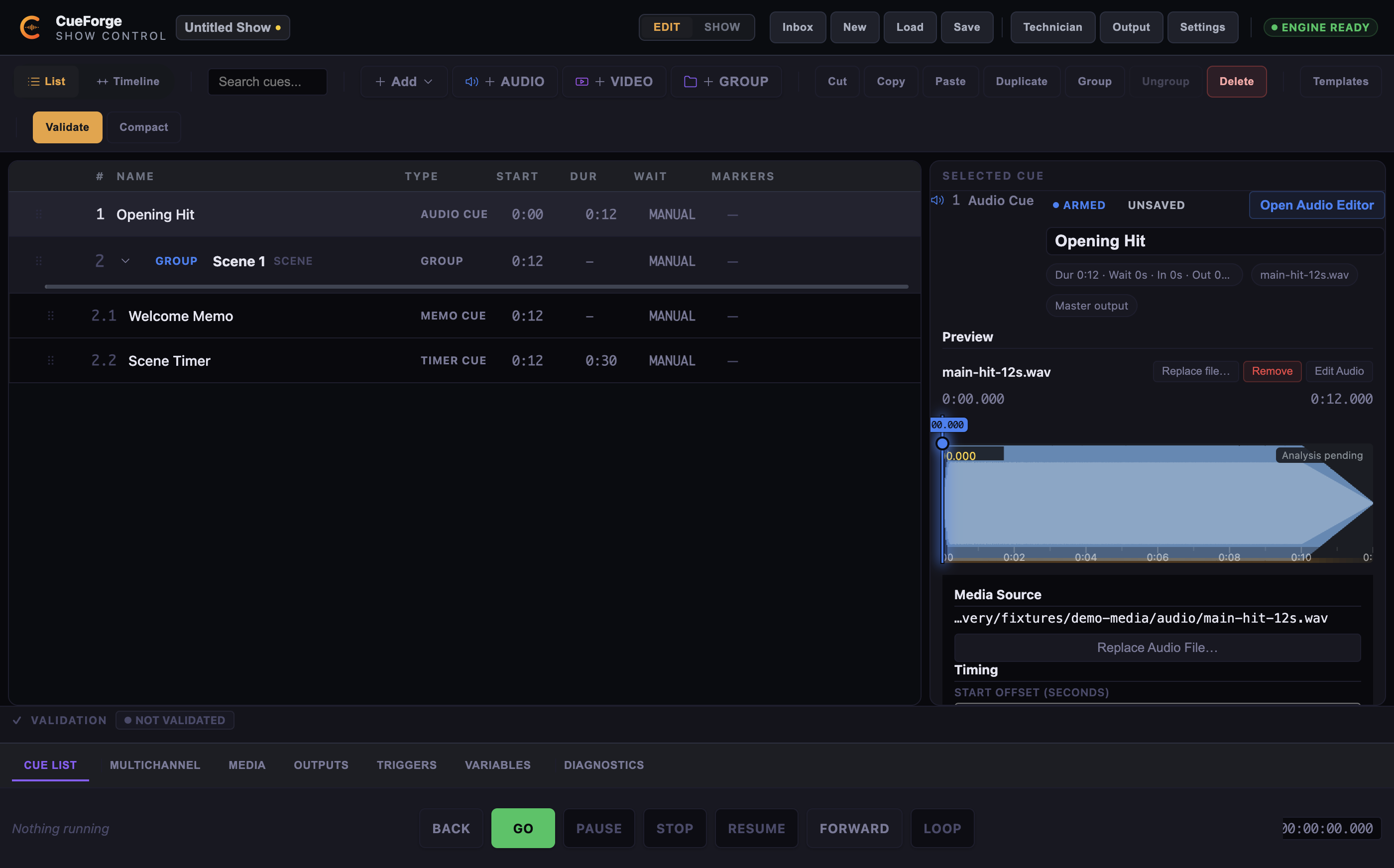
The inspector’s Open Audio Editor button opens the embedded Audio Deep Editor for this cue: waveform, markers, beat grid, phrases, and actor voice tracks. The header’s Open Detached button (or Window → Open Prep Authoring Window) opens the same editor as a separate window for side-by-side work.
The Deep Editor has its own draft state: a Draft badge appears while audio edits are unsaved, and switching cues prompts the Unsaved Audio Changes dialog (Save and Switch / Discard Changes / Cancel). See Undo, Draft Edits and Dirty State.
The Audio Cue inspector for a selected cue: media source, preview waveform, timing, and routing summary.
Show Mode behaviour
When an Audio Cue fires in Show Mode:
- Playback begins from the start (or the Start Offset).
- Fade-in ramps volume if configured.
- The Now Running card shows the cue name, elapsed and remaining time, a progress bar, and loop or fade badges.
- Markers appear in the marker strip as playback passes them.
- At the end of the file (with looping off), the cue completes and its continuation fires: Auto-Continue advances immediately, Auto-Follow starts the currently armed cue, Manual waits for GO.
Common mistakes
- Missing file — moving the project without its media causes a preflight blocker; recover with the Relink Missing Media dialog.
- Route set to None — the cue runs but is silent; preflight warns “no audible output”.
- Loop without a stop plan — a looping cue runs until STOP or PANIC.
- Preview route assumed silent — Preview currently aliases Master, so preview-audible cues sound in the main output.
Troubleshooting
Audio does not play
- Check the cue’s Audio output route — No Audio is silent by design.
- Check the assigned Audio Bus is not muted.
- Run preflight to catch missing files and route problems.
- Convert the file to WAV and test again.
Waveform is still analysing
The Deep Editor analyses the file before the full waveform appears (“Analyzing audio…”, “Detecting transients…”). Large files take longer; the analysis can be cancelled. Playback is not blocked while analysis runs.
Cue keeps playing
- Check whether Loop audio is enabled.
- Press
Sfor STOP orEscapefor PANIC. - Verify the continuation setting is not chaining back into the same cue.